How to Fix a Digital Calendar That Didn’t Upload to a New Phone
If your digital calendar didn’t upload to your new phone, it can be frustrating. But don’t worry, there are simple steps you can take to fix the issue and get your calendar back in sync.
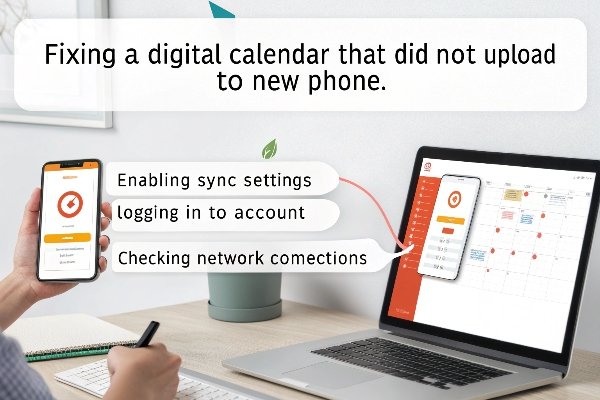
To fix a digital calendar that didn’t upload to your new phone, check your sync settings, make sure you’re logged into the correct account, and verify your internet connection. Follow the steps below to troubleshoot this problem.

It’s easy to panic when your digital calendar doesn’t show up on your new phone. But don’t worry – this is a common issue, and it’s usually fixable with a few simple adjustments. Let’s go through the steps you can take to resolve the problem.
Why didn’t my digital calendar upload to my new phone?
If your calendar is missing after switching phones, it can feel like a mystery. Let’s explore why this might happen and how to fix it.
Your digital calendar might not upload to your new phone due to issues with syncing, login problems, or settings that need to be adjusted. Here’s why this might be happening:

- Syncing issues: If your calendar app isn’t syncing with your cloud account, your events won’t appear on your new phone.
- Account login: If you’re not logged into the same account on both devices, your calendar won’t sync correctly.
- Weak internet connection: A poor internet connection can cause sync errors.
- Time zone mismatch: If your phone’s time zone isn’t set correctly, it may cause events to show up at incorrect times or not show at all.
To fix these issues, follow the next steps to ensure everything is set up properly.
How to ensure your digital calendar syncs correctly?
You don’t want to deal with syncing issues every time you switch phones. Let’s go over some steps to ensure your calendar stays synced in the future.
To ensure your digital calendar syncs correctly, here’s what you need to do:

- Update your apps and phone software: Outdated versions can cause syncing problems.
- Check sync settings: Make sure sync is enabled for your calendar app.
- Log into the correct account: Confirm you’re logged into the right account on both devices.
- Verify a stable internet connection: Use a reliable Wi-Fi connection during the sync process.
- Set the correct time zone: Ensure the time zone on your phone matches the one used by your calendar.
These simple steps will help prevent syncing problems and keep your calendar data consistent across devices.
What to do if the calendar still won’t upload?
If your calendar still won’t upload after troubleshooting, there are a few last steps to try before you seek further help.
Here’s what you can do:

- Clear app cache: Clearing the cache can help remove corrupted data that might be causing syncing issues.
- Reinstall the app: Sometimes reinstalling the app can resolve syncing problems.
- Check for server outages: Verify whether your calendar service is experiencing any downtime.
- Contact customer support: If none of the above work, reach out to customer support for your calendar provider for more advanced troubleshooting.
These steps can help resolve more complex syncing issues that might be preventing your calendar from uploading.
Conclusion
By following these steps, you should be able to get your digital calendar syncing correctly on your new phone. However, if you’re still facing issues or want expert help with your digital solutions, don’t hesitate to reach out to us.
At Tech Family Solution, we specialize in providing top-notch digital solutions for businesses. Whether you need help troubleshooting tech issues or are looking for innovative ways to improve productivity and organization with digital tools, we’re here to help. Contact us today to get personalized assistance or schedule a consultation.
For more information or to schedule a consultation, contact Luna Wang at techfamilysolution@gmail.com or visit www.techfamilysolution.com.